Update: Still available for a limited time. Be sure to read through the wiki if you're considering flashing this router.
T-Mobile.com has
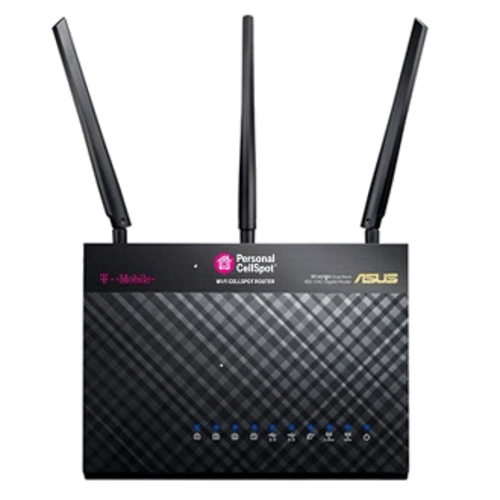
ASUS TM-AC1900 Wireless-AC1900 Dual-Band Gigabit Router (Rebranded RT-AC68U) on sale for $99 - $40 w/ promo code
WIFI40 =
$59.
Shipping is free. Thanks Cmoney100g, DanHoo & itzlikedat [
Discuss]


5,765 Comments
Your comment cannot be blank.
Featured Comments
General Information:
Default T-mobile Router IP is 192.168.29.1
Default Username is admin
Default Password is password
Once you switch to ASUS CFE and firmware
Default ASUS Router IP is 192.168.1.1
Default Username is admin
Default Password is admin
#1 YOU DON'T NEED TELNET (if you let the router update itself to 3.0.0.4.376_3169 it includes SSH, so no need to downgrade firmware or play with html)
Web interface Administration -> System -> Enable SSH (then Apply)
Telnet is just an insecure version of ssh. Use ssh to log into the router.
How to use SSH with your Asus Router:
Log into your router's web interface as usual (web browser to 192.168.29.1 if you are on T-mobile firmware or 192.168.1.1 if you are on Asus firmware, both assuming you haven't changed the default IP).
Once in web interface click Administration on lower left and then the System tab toward the top. One option should be to enable SSH. Set that to yes or on and press Apply at the bottom.
Run putty.exe to open an ssh terminal. Get putty.exe here:
http://www.chiark.gree
Run putty.exe, type the IP of your router, username admin, password is password, admin, or whatever you changed it to. You are now logged into the router and have terminal access without needing telnet. It may ask you about storing a host key, you can say yes or no, it doesn't matter.
#2 YOU DON'T NEED A USB STICK TO GET FILES ON OR OFF YOUR ROUTER
You can copy files back and forth to the router with a simple drag and drop interface with WinSCP, a windows GUI for the secure copy command, scp.
Download and run WinSCP from here:
https://winscp.net/eng/download.php
When you open WinSCP, it will have a setting at the top for File Protocol. Set this away from SFTP and switch it to SCP. Type your router's IP into the Host name box. It will ask username and password. It may ask you about storing a host key, you can say yes or no, it doesn't matter.
You now have drag and drop access to your router. It defaults to the /tmp/home/root, which is perfect for us.
#3 YOU DON'T NEED TO UNPLUG THE ROUTER
There is a power switch button on the back of the router. It's easy to use with one hand and saves you the hassle of unplugging and replugging the power adapter. The reset button, which requires a pen or some poking tool, is a little above this power button. To reboot router, press power button once to turn the router off, wait 10 seconds, then press it again to power it on.
#4 YOU DON'T NEED A HEX EDITOR
As is pointed out in Engineer's guide, there's a cfe.exe which copies the MAC addresses for you, and you can use his provided grep commands the verify the correctness. You don't need to use a hex editor to do this.
---------------------------------------------------------------------------------
I had used the router for a few days with T-mobile firmware and had allowed it to upgrade to 3.0.0.4.376_3169. Since I used SSH instead of telnet, allowing this T-mobile firmware update didn't end up being a bad thing or adding any hassle. In other words, don't worry about connecting the router to the internet or upgrading it when you get it if you want to try the T-mobile firmware.
Here are my shortened/simplified instructions from whatever T-mobile firmware you have (if you are on older firmware than 3.0.0.4.376_3169 that has Telnet, you can use that instead of SSH, but if you are on firmware that doesn't have SSH or Telnet, you can use the Web Interface to allow the router to update itself to 3.0.0.4.376_3169, which has SSH, before you continue).
1. Enable SSH in the Web interface
Administration -> System -> Enable SSH
2. Download and run Putty.exe and WinSCP.exe to log into your router from both programs.
3. Slightly modified version from Engineer's excellent guide:
https://slickdeals.net/forums/showpost.php?p=
- From Putty type:
cat /dev/mtd0 > original_cfe.bin
- From WinSCP click refresh on right side and see that original_cfe.bin has now appeared
- Make New Folder on your PC (left side of WinSCP) and drag original_cfe.bin from right side to left side (from router to the new empty folder on your PC)
- Download ASUS CFE 1.0.2.0:
https://mega.nz/#!IxZTAbDZ!Rard
- Unrar that file into the same New Folder as original_cfe.bin
(If you don't already have WinRAR, get that here: http://www.rarlab.com/download.htm)
-Rename that CFE file from rt-ac68u_1.0.2.0_us.bin to new_cfe.bin (right click, rename)
-Download cfe.exe and unrar into your New Folder on your PC.
https://mega.nz/#!9kZjGS6C!tTOd
-On your PC, use the normal windows explorer folder browser (not WinSCP) to navigate to your New Folder that contains these three files (original_cfe.bin, new_cfe.bin, and cfe.exe).
-Double click cfe.exe. Say yes you trust it to run.
-If it worked, a new_cfe.bin.bak file will appear. You don't need this file, but it shows cfe.exe did something.
-In WinSCP, drag new_cfe.bin in the left window (your New Folder) to the right window (your router).
**************************IMPORTANT CHECK*************************
-In Putty, check that cfe.exe worked and you copied things correctly by typing (copy here, right click in Putty to paste, then press Enter):
grep mac ./original_cfe.bin ./new_cfe.bin
(if the results don't match, STOP and recheck your work).
grep secret ./original_cfe.bin ./new_cfe.bin
(again, if the results don't match, STOP and recheck your work).
***************************************************************************
**********IMPORTANT (while you still have internet access)***********
-Download this ASUS firmware version 376.3626 and save it on your PC for later:
http://dlcdnet.asus.co
It's important that you have that exact firmware version downloaded before you disconnect from the internet. It will expand your rootfs partition from 32MB to 64MB to allow for modern firmware. You can unzip it into your New Folder or an easy to find place like your desktop. The file is named FW_RT_AC68U_30043763626.trx after you unzip it.
----- Begin Optional/Educational ------
In Putty, you can check your current partition size using the command:
df -h
If you have a 32MB partition, jffs will also be around 32MB. If you have upgraded to 64MB, jffs will show something closer to 64MB.
Example of 32MB partition with T-mobile firmware:
admin@(none):/tmp/home/root# df -h
Filesystem Size Used Available Use% Mounted on
/dev/root 13.9M 13.9M 0 100% /
devtmpfs 124.8M 0 124.8M 0% /dev
tmpfs 124.9M 256.0K 124.6M 0% /tmp
/dev/mtdblock6 30.8M 1.1M 29.7M 3% /jffs
/dev/mtdblock7 1.3M 388.0K 892.0K 30% /T-Mobile
Example with 64MB partition after updating to Asus firmware (which we will do later):
admin@(none):/tmp/home/root# df -h
Filesystem Size Used Available Use% Mounted on
/dev/root 37.0M 37.0M 0 100% /
devtmpfs 124.8M 0 124.8M 0% /dev
tmpfs 124.9M 1.3M 123.6M 1% /tmp
/dev/mtdblock4 62.8M 1.7M 61.0M 3% /jffs
You can check your CFE version by typing:
nvram get bl_version
With the T-mobile firmware that I allowed to upgrade, the output looked like:
admin@(none):/tmp/home/root# nvram get bl_version
2.1.2.6
After I completed the switch to the ASUS CFE, the output looks like:
admin@(none):/tmp/home/root# nvram get bl_version
1.0.2.0
You can check your hardware revision by typing:
nvram get HW_ver
Mine is hardware revision 1.7 as shown by this output:
admin@(none):/# nvram get HW_ver
170
You can check your router's CPU and RAM speed by typing:
nvram get clkfreq
Mine is the default 800MHz CPU and 666MHz RAM as shown in this output:
admin@(none):/tmp/home/root# nvram get clkfreq
800,666
------- End Optional/Educational ------
-Download the CFE flashing utility:
https://mega.nz/#!RxhHxY6C!VYks
-Unrar mtd-write and use WinSCP to copy it onto your router (the right WinSCP window).
-In Putty, test if you have everything you need by typing:
ls -l (that's LS -L but in lower case)
Output should look like this showing the three files:
admin@(none):/tmp/home/root# ls -l
-rwxr--r-- 1 admin root 523364 Nov 4 2014 mtd-write
-rw-r--r-- 1 admin root 231923 Nov 27 14:32 new_cfe.bin
-rw-rw-rw- 1 admin root 524288 Nov 27 11:20 original_cfe.bin
-See if mtd-write will work by typing:
./mtd-write
Output should be:
admin@(none):/tmp/home/root# ./mtd-write
Usage: ./mtd-write -i file -d part
You will probably get permission denied like this:
admin@(none):/tmp/home/root# ./mtd-write
-sh: ./mtd-write: Permission denied
You just need to type this:
chmod u+x mtd-write (this will make the file executable)
If you get an error about not found like this:
admin@(none):/tmp/home/root# mtd-write
-sh: mtd-write: not found
You need to make sure the ./ is in front when you type ./mtd-write
So, if your output is like this, you are ready to use the command to update your CFE:
admin@(none):/tmp/home/root# ./mtd-write
Usage: ./mtd-write -i file -d part
-Actually write the ASUS CFE version and overwrite the T-mobile one by typing:
./mtd-write new_cfe.bin boot
-Reboot the router by typing:
reboot
WinSCP and Putty will lose connection. You can close WinSCP since you are done with that. You should also close putty because it will be unresponsive.
-After router is done booting (a minute or two) SSH into router and check CFE version by typing:
nvram get bl_version
If I remember correctly, it already displayed 1.0.2.0 at this point in the process.
-Reset NVRAM by the hardware method:
Power router off using power button on the back
Wait 10 seconds
Press and hold the WPS button
Power the router back on while continuing to hold the WPS button for 15-20 seconds
For me, at this point having uploaded and installed the ASUS CFE version 1.0.2.0 and reset the NVRAM, the router's IP switched by itself from 192.168.29.1 to 192.168.1.1. This was a bit of guess and check over several tries because the guides didn't work until I realized this. So, for me, the next set was to enter recovery mode as follows:
*** Enter Recovery Mode to install stock Asus firmware 376.3626 that you downloaded before ***
-Set PC's IP address to static 192.168.1.2 (not sure if this is needed, but oh well)
-Unplug all other ethernet cables except the one to your PC which is in yellow port 1 (again, not sure if this ended up mattering but I did it)
-Turn off router with power button
-In a browser (I can't remember it only worked with IE or also other browsers) type 192.168.1.1 and watch it spin to look for it
-Press and hold reset button with pen
-Power on router with power button
-Continue to hold reset button for 20-30 seconds
-If you win, a Mini-CFE web page will appear in your web browser (if you can't get into the Mini-CFE, try to ping 192.168.1.1 or 192.168.29.1 to see which one your router is using then keep trying
-Once it works, use the Mini-CFE web page to install FW_RT_AC68U_30043763626.trx
-After it installs and reboots itself, you are free to log into 192.168.1.1 with admin/admin and do whatever you want for other firmware. Your jffs should now be around 64MB (see above to check), so any firmware will work. I let the web interface update me to stock Asus 3.0.0.4.380_4118. I'll probably go Merlin soon.
Thanks to Engineer and others for the guides. I just thought I'd share/update with my experience to give others hope and motivation to try as well. The newer Asus firmware has several other new features over the newest T-mobile firmware and also works with the Asus Router app: https://www.asus.com/asus-router-app/
Good luck!
FYI, it will show $5.99 for standard shipping when you add it to cart, but that goes away when you are on the final checkout page.
I have this router it is AMAZING!!!
Sign up for a Slickdeals account to remove this ad.
1. You don't have to go through the trouble of flashing it to the stock Asus firmware from the T-Mobile firmware (if that is what you wish to do). It took me around 1-2 hours to learn and execute the process.
2. It doesn't have the T-Mobile and Personal Cellspot branding at the top, so it looks better.
3. I've heard that the AC1900 branded version from Walmart is a newer hardware revision, which would mean that it has a 1GHz processor (vs 800MHz) and additional shielding around the USB3 port.
1. You don't have to go through the trouble of flashing it to the stock Asus firmware from the T-Mobile firmware (if that is what you wish to do). It took me around 1-2 hours to learn and execute the process.
2. It doesn't have the T-Mobile and Personal Cellspot branding at the top, so it looks better.
3. I've heard that the AC1900 branded version from Walmart is a newer hardware revision, which would mean that it has a 1GHz processor (vs 800MHz) and additional shielding around the USB3 port.
Repd
i have 3 of them. one is running tmobile firmware (firmware version 3.0.0.4.376_3169) and the other two i flashed using the guide in the wiki
so anyway after your post i unplugged the one runninh the latest tmobile firmware. unplug it from power, unplug all the ethernet cables. then plug in a single laptop to one of the lan ports. set teh laptop to static ip 192.168.29.9. with the power still unplugged i hold in the reset button, a few seconds later i plug it in. i give it a nice 1 onethousand, 2 onethousand count up to 20. then release the reset button. then on the laptop with a brower go to 192.168.29.1 and it takes me to where you can install a rom (the page was called "ASUSTek - CFE miniWeb Server")
as a note, i think some people think the router isn't in recovery mode because the lights aren't flashing or doing what they expect. on this latest tmobile firmware when in recovery mode i just had a solid power light and solid light on the one lan port i was using. nothing flashing
as far as partition resizing errors, etc, i suspect people aren't following the direction. once you get the new CFE (bootloader) installed you are supposed to flash a specific firmware that will expand the rootfs partition, and then at that point you can load any new firmware
edit: just to clarify something. the point of my test was to verify that even on the latest tmobile firmware you can get the router into recovery mode where you can go back to an old version of the firmware that will have option to enable telnet
Repd
Do you have the link to the Walmart version for $45? Thanks.
https://slickdeals.net/f/9350927-asus-rt-ac1900-router-44-75-at-walmart-ymmv
i have 3 of them. one is running tmobile firmware (firmware version 3.0.0.4.376_3169) and the other two i flashed using the guide in the wiki
so anyway after your post i unplugged the one runninh the latest tmobile firmware. unplug it from power, unplug all the ethernet cables. then plug in a single laptop to one of the lan ports. set teh laptop to static ip 192.168.29.9. with the power still unplugged i hold in the reset button, a few seconds later i plug it in. i give it a nice 1 onethousand, 2 onethousand count up to 20. then release the reset button. then on the laptop with a brower go to 192.168.29.1 and it takes me to where you can install a rom (the page was called "ASUSTek - CFE miniWeb Server")
as a note, i think some people think the router isn't in recovery mode because the lights aren't flashing or doing what they expect. on this latest tmobile firmware when in recovery mode i just had a solid power light and solid light on the one lan port i was using. nothing flashing
as far as partition resizing errors, etc, i suspect people aren't following the direction. once you get the new CFE (bootloader) installed you are supposed to flash a specific firmware that will expand the rootfs partition, and then at that point you can load any new firmware
edit: just to clarify something. the point of my test was to verify that even on the latest tmobile firmware you can get the router into recovery mode where you can go back to an old version of the firmware that will have option to enable telnet
**EDIT** Oh, I see I need to read on the Telnet part that you glossed over. Ok.
https://slickdeals.net/f/9350927-asus-rt-ac1900-router-44-75-at-walmart-ymmv
Sign up for a Slickdeals account to remove this ad.
so it basically goes:
flash backward to tmobile 1703
enable telnet
flash new bootloader
flash first asus firmware
flash latest version firmware
a lot of people are skipping steps, and it might or might not come back to haunt them.
*NOTE* some people are skipping the first step by editing HTML and enabling telnet. that should be fine. its some of the other steps that worry me if they were skipped
so it basically goes:
flash backward to tmobile 1703
enable telnet
flash new bootloader
flash first asus firmware
flash latest version firmware
a lot of people are skipping steps, and it might or might not come back to haunt them.
*NOTE* some people are skipping the first step by editing HTML and enabling telnet. that should be fine. its some of the other steps that worry me if they were skipped
Tried WPS button method to clear nvram but still no go.
my steps:
HTML edit to enable telnet
telnet into router and copied CFE from router to original_cfe.bin
used rt-ac68u_1.0.2.1_us.bin and renamed to new_cfe.bin
used cfe.exe to replace MACs and WPS
compared original_cfe.bin with new_cfe.bin and confirmed MACs and WPS are same
flashed new_cfe.bin
used telnet method to clear nvram and reboot
can not access router anymore (lights are ethernet flashing and solid power)
Any help would be appreciated.
SOLVED: I decided to just go straight into recovery mode and was able to access the minicfe page at 192.168.29.1 and uploaded the 3626 firmware and voila now able to access the gui...strange why i couldn't access it after flashing CFE.
Had the *exact* same experience above and it took me a while to get into recovery mode. Thought I had bricked the router for a moment!
Thoughts on upgrading from the web GUI after getting on the recommended version instead of the miniCFE page? Looking at downgrading to John's Merlin fork (as that's what I'm currently using for my main retail AC68u)
Notes:
Started off with firmware 3108. I never connected my router to the Internet, and in fact the WAN port has never had a cable in it at all, so this was the out-of-the-box version. Others who ordered the same day from T-Mobile seem to have had different versions and different results.
HTML editing trick was not successful. I mean, I was able to unhide the setting, and change it, but telnet was never running on the router's IP. I even rebooted the router, unhid the setting again, and could see that it remembered me changing it to "yes" from the previous work ... yet still no port 23 on 192.168.29.1. I could navigate the UI and ping it, so my connectivity was good, but there simply was no telnet server. "Connection refused"
Gave up on HTML edit and proceeded to try rescue mode downgrade path.
Following video instructions and downloading files from links in description here:
https://www.youtube.com/watch?v=E_giMfT
Powered off, held reset, and powered on. Kept reset down for 8 seconds and released. After a few seconds, hitting the management URL showed a strange page that just said "settings have been changed" and gave me no options. I couldn't seem to do anything useful here and was stuck.
Tried the same thing, but holding reset down for 15 seconds instead of 8. Bingo. I got a page asking me to select a firmware file for upload. Gave it the "step 1" 1703 file. After a few minutes, it was done and rebooted. UI then said I have 1703 installed. Progress!
The telnet option was now always visible in the UI and in fact was already enabled. I assume this is left over from me enabling it with the HTML editing trick earlier. Flipped over to another window and telnetted in no problem.
Followed the instructions to grab the old cfe onto flash, get it to the laptop, copy the mac addresses from my old cfe to the new cfe, and put the modified new cfe on the flash back into the router. Video has his macs blurred out, but for reference, my first 2 macs were the same and the 3rd mac was several higher. Ending in 40, 40, and 44. So, don't be scared and worry you miscopied if you notice the first two are the same.
After flashing, he said to hold the WPS button during power on until the ASUS logo LED flashes. Mine never did, but after what seemed like a long time I gave up and released it. The router booted up into the first-setup wizard, so clearly the settings were successfully cleared.
Grabbed the latest firmware from here:
ftp://ftp.dd-wrt.com/betas/2016/1...-rt-ac68u/
Notice the directory is date based. Use parent directory links to go up and get yourself into the latest date, then back down into the asus-rt-ac68u folder for that date. There's your latest firmware file.
In the video, he then goes into rescue mode then uses tftp to upload the file. Rescue mode has a tiny web site where we can upload the file in the web browser, so why not use that instead of tftp? http://192.168.29.1/ and I gave it the dd-wrt firmware I just downloaded and it took it and booted up just fine. No tftp was ever needed for this entire procedure.
After it rebooted, it is now on the dd-wrt default of 192.168.1.1 and my laptop on the 192.168.29.2 IP can't reach it. I changed my IP to 192.168.1.2 and was able to access the new dd-wrt UI at http://192.168.1.1/ and I see version 30880 dated 11/14/2016. Yay!
I'm using this as an AP only, not as a router, and it seems to be working great so far.
I noticed a pretty minor quirk, but the 5ghz wifi LED never nights up under dd-wrt even though I do have 5 ghz clients currently connected.
Does not seem to be much info out there about using an android phone over the USB as your internet source.
I did get it to work ONE time for a few seconds on the stock T-Mo firmware, with my 1st gen Moto G running on Sprint. No other phones that I own want to connect.
Now that I flashed the stock Asus 3626 FW, it is more flaky tan before.
Moto G wont work anymore either.
Does anyone know which of the custom FWs offer better support for the USB modem feature?
Like I said, info is sparse.
Called Asus and T-Mo. Not much help.
Used my Mac for all the telnet commands (had it directly connected to the router) and had a PC I RDC'd into to use the cfe.exe to collect the MAC addresses.
Thanks again to all the contributors to this thread!
I see everyone with higher firmware seems to be able to roll back to 1703 without problem. Has anyone been able to roll back to 1703 from 2827? Should I plug into the internet and get it update to a new version then take my chance rolling back.
Sign up for a Slickdeals account to remove this ad.